
Percentage Increase Formula: How to Calculate It
The percentage increase formula shows how much a value has grown compared with its original value. Subtract the original value from the new value, divide the difference by the original value, and multiply by 100. For example, a price that rises from 80 to 100 increases by 25%, because (100 − 80) ÷ 80 × 100 = 25%.
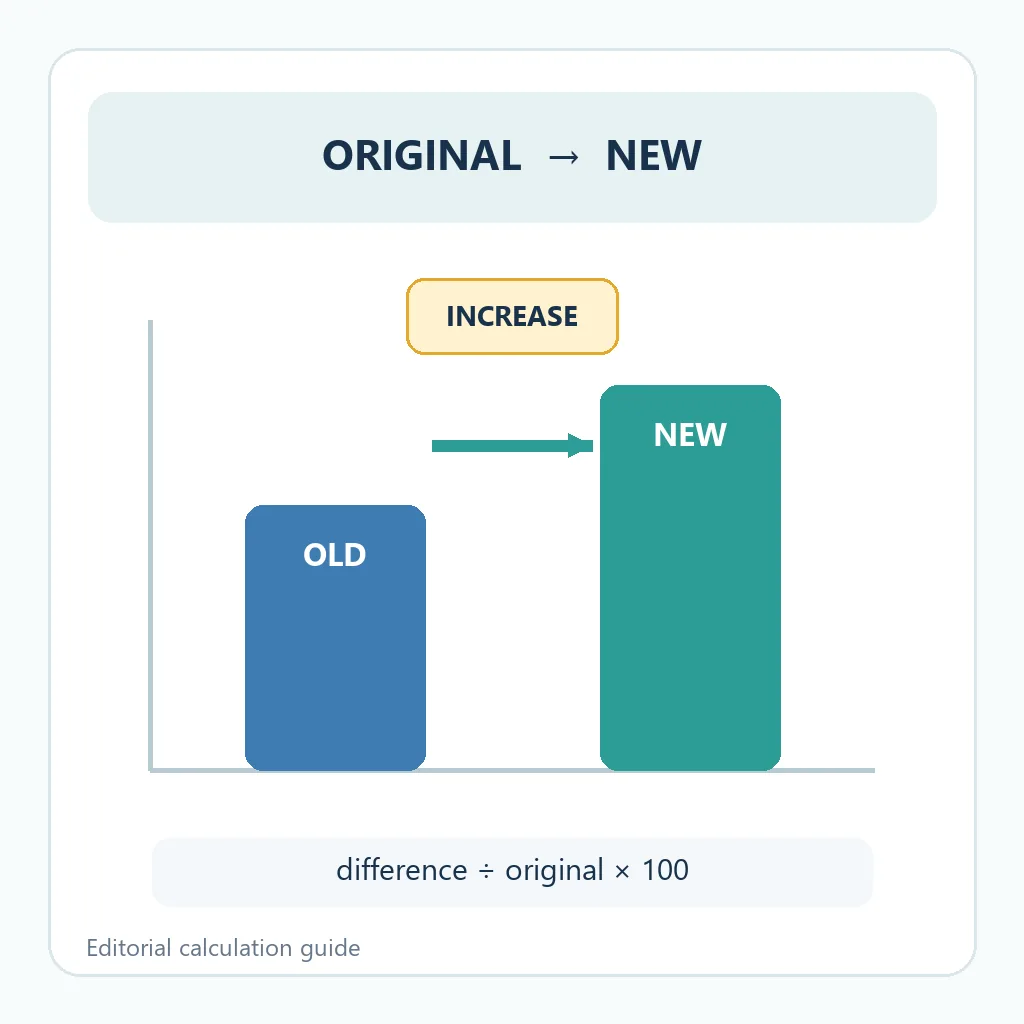
Percentage increase formula at a glance
Percentage increase = (New value − Original value) ÷ Original value × 100. If the original value is 80 and the new value is 100, the difference is 20. Dividing 20 by 80 gives 0.25, so the percentage increase is 25%.
The original value is the denominator because it is the baseline for the comparison. Keep the sign and the unrounded values during the calculation, then round the final percentage to a sensible number of decimal places.
What percentage increase means
Percentage increase is a relative comparison between an original amount and a larger new amount. It answers the question, “How large is the increase compared with where we started?” That makes it useful for prices, salaries, revenue, website visitors, production totals, test scores, and any other numeric measure with a meaningful starting point.
The result is different from the absolute difference. A change from 20 to 30 is an increase of 10 units and a 50% increase. A change from 2,000 to 2,010 is an increase of 10 units but only a 0.5% increase. Reporting both numbers prevents a small base from making a modest change look dramatic.
For a quick result, you can use the site's percentage increase calculator (the increase-rate calculator). This guide explains the reasoning behind the formula so you can audit the result, build it into a spreadsheet, or choose the right comparison for a report.
How to calculate percentage increase step by step
Use the same order every time. First identify the original value, then record the new value. Do not switch the two values halfway through the calculation, because changing the denominator changes the answer.
- Find the difference: subtract the original value from the new value.
- Use the original as the base: divide the difference by the original value.
- Convert to a percentage: multiply the decimal result by 100, or format it as a percentage.
- Round and explain: choose an appropriate precision and show the two input values in the report.
Suppose monthly visitors rise from 12,000 to 15,000. The difference is 3,000. Divide 3,000 by 12,000 to get 0.25, then multiply by 100. The percentage increase is 25%. If a dashboard already formats the result as a percent, use =(new-original)/original and do not multiply by 100 a second time.
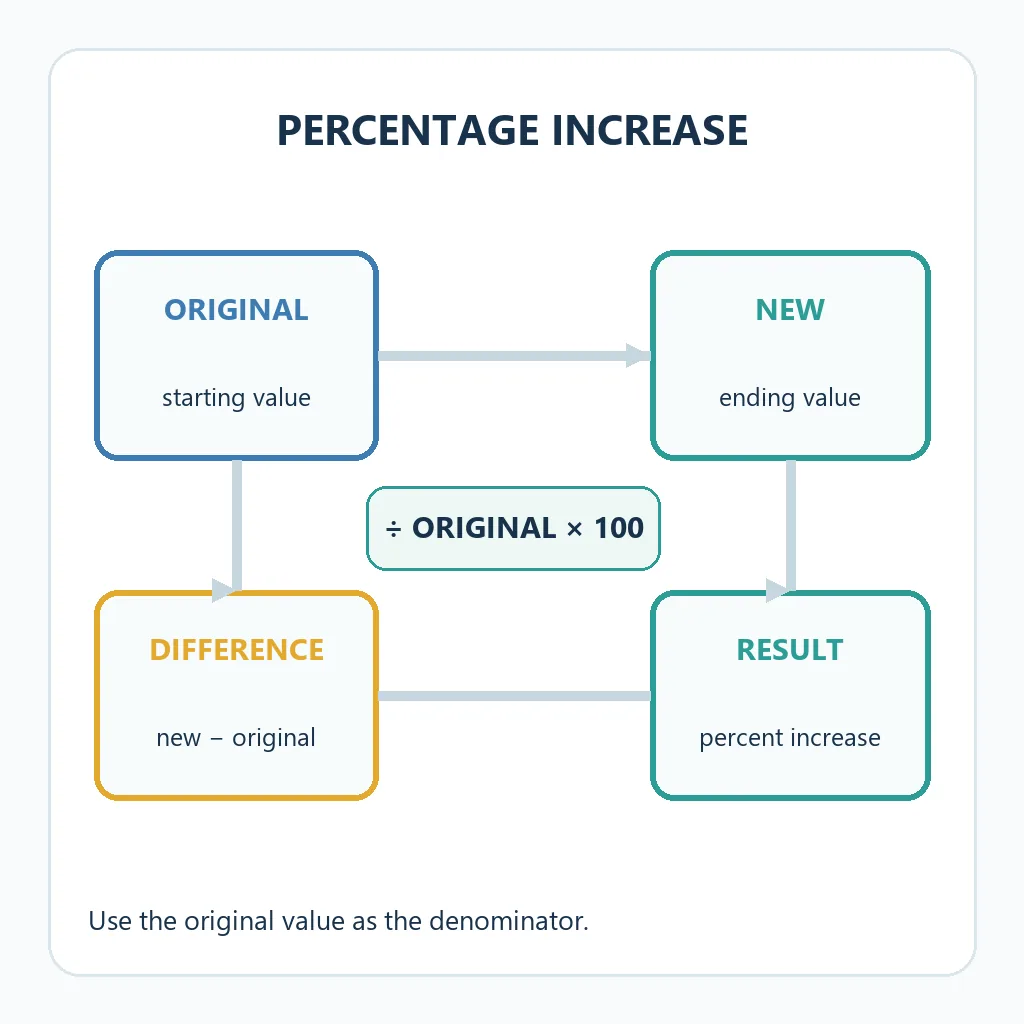
Percentage increase examples
These examples use the same formula but different kinds of measurements. Showing the unit and the absolute change makes the final sentence easier to interpret.
| Original | New | Difference | Percentage increase | Plain-language reading |
|---|---|---|---|---|
| $80 | $100 | $20 | 25% | The price increased by one quarter of the original price. |
| $2,400 salary | $2,520 salary | $120 | 5% | The salary increased by 5%. |
| 12,000 visitors | 15,000 visitors | 3,000 | 25% | Traffic grew by 3,000 visits, or 25%. |
| 40 units | 46 units | 6 | 15% | Output increased by 15% from the original level. |
For the salary example, calculate (2,520 − 2,400) ÷ 2,400 × 100. The result is 5%. If the values include tax, fees, refunds, or different time periods, state that context next to the percentage. The arithmetic can be correct even when the comparison is not fair.
Percentage increase vs. decrease, change, and percentage points
Related terms are easy to mix up. Use the phrase that matches the comparison so readers know whether the new value is higher, lower, or simply a different percentage rate.
| Measure | Formula or meaning | Example |
|---|---|---|
| Percentage increase | (New − Original) ÷ Original × 100 when new is higher | 80 to 100 = +25% |
| Percentage decrease | (Original − New) ÷ Original × 100 when new is lower | 100 to 80 = −20% or a 20% decrease |
| Percentage change | A broad term for relative change, positive or negative | 80 to 100 = +25% |
| Percentage-point change | Subtract one percentage rate from another | 4% to 5% = +1 percentage point |
A move from a 4% conversion rate to a 5% conversion rate is an increase of 1 percentage point. Relative to the original 4% rate, it is also a 25% increase. Both statements are correct, but percentage points are usually clearer when the values are already percentages. For adjacent monthly periods, see the month-over-month calculation guide.
Reverse calculations: find the new value or original value
Sometimes you know the original value and the percentage increase but need the new value. Convert the percentage to a decimal and multiply the original by one plus that decimal.
If a $200 item increases by 15%, calculate $200 × 1.15 = $230. The increase amount is $30, and the new price is $230 before any other adjustment. This is not the same as adding 15 units; the percent is applied to the original amount.
To recover the original value from a new value and a known increase, divide by one plus the rate: Original = New ÷ (1 + increase rate). A new price of $230 after a 15% increase gives $230 ÷ 1.15 = $200. Keep the full decimal during the calculation and round the displayed currency only at the end.
How to calculate percentage increase in Excel or Google Sheets
Put the original value in cell B2 and the new value in cell C2. In the result cell, enter =(C2-B2)/B2, then format the cell as a percentage. Excel and Google Sheets will display 25% when B2 is 80 and C2 is 100.
- Label the columns clearly as Original, New, Difference, and Percentage increase.
- Use
=C2-B2for the absolute difference. - Use
=(C2-B2)/B2for the percentage increase result. - Format the percentage column rather than multiplying by 100 and then formatting it again.
- Copy the formula down only after checking that each row has a valid original value.
For a reverse calculation, if B2 contains the original value and D2 contains a rate such as 15%, use =B2*(1+D2). If you type 15 as a whole number instead of 15%, use =B2*(1+D2/100). Consistent cell formatting prevents a correct formula from producing a misleading result.
Zero, negative, and small original values
If the original value is zero, the standard percentage increase formula divides by zero and has no finite result. Do not report 0%, 100%, or an invented number. Write “N/A” or “new from zero,” show the new amount, and explain that there is no non-zero baseline.
Negative original values require extra care. A negative profit, balance, or temperature can make the sign of a relative change difficult to interpret. Keep the raw values visible and state the convention used before describing the result as growth or decline. For accounting or financial reporting, follow the definition used by the responsible team.
Small baselines can create very large percentages. An increase from 1 to 2 is 100%, but it is still an increase of only one unit. Also check whether the periods, units, measurement rules, and data sources are comparable. A percentage should summarize a valid comparison, not hide a change in definition.
FAQ: percentage increase formula
What is the simplest percentage increase formula?
Subtract the original value from the new value, divide by the original value, and multiply by 100: (New − Original) ÷ Original × 100.
How do I calculate a percentage increase between two numbers?
Use the smaller starting or original value as the denominator when the question asks how much the value increased from that baseline. For 50 to 65, the difference is 15, and 15 ÷ 50 × 100 gives a 30% increase.
Is percentage increase the same as percentage change?
They use the same relative-change arithmetic when the new value is higher. Percentage change is the broader term because it can describe either an increase or a decrease.
How do I calculate percentage increase in Excel?
With the original value in B2 and the new value in C2, enter =(C2-B2)/B2 and format the result as a percentage. Add a zero check if B2 can be zero.
What if the original value is zero?
A standard percentage increase is undefined because it would divide by zero. Report the new amount and use N/A or “new from zero” instead of inventing a percentage.
Summary
The percentage increase formula is (New − Original) ÷ Original × 100. Start with the original value, calculate the absolute difference, divide by that original baseline, and convert the result to a percent. Use examples, spreadsheet checks, and clear labels to separate percentage increase from percentage points or a simple unit difference. When the baseline is zero, negative, or very small, explain the limitation instead of presenting a misleading result.